Actors
Actors are necessary for you to work with the lines block.
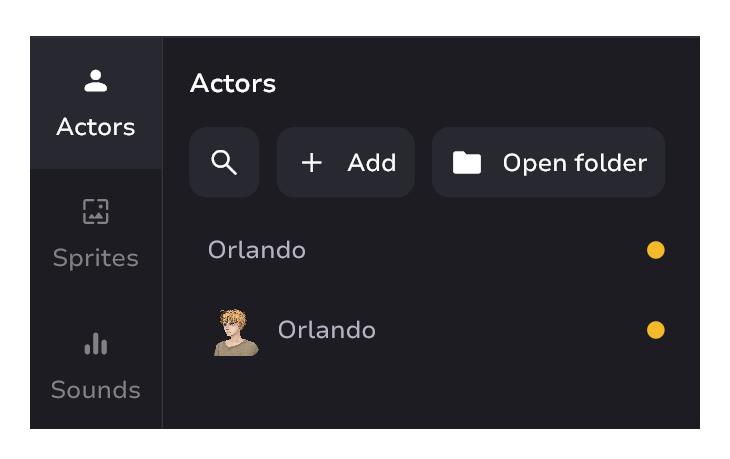
Actors are your characters in the text, and not the characters themselves. If you need to add a character as an image, check out sprites.
Format restrictions
Actors can only be:
- An empty file automatically created by Intale Studio
- png, jpeg, jpg, webp, tiff
Others are not supported
Don't change file names through File Explorer and don't move files if they are already set in blocks! Do it only through the Intale Studio interface. Otherwise, the file will disappear from all blocks it is installed in.
Navigation in brief
- Click "+ Add" to create new actor
- Type any part of actor's or folder's name in "🔍" to search
- Click "Open folder" to open actors' folder in Explorer
- Double-click on an actor's name renames it
- Clicking on the colored circle on the right side of the actor opens a modal palette window
- To quickly create a lines block with the desired actor - drag and drop the desired actor onto the canvas
- For an existing lines block - drag and drop the actor into the desired line
- To delete an actor, click to select it and press Delete or Backspace
- Left-click to open the context menu
Context menu
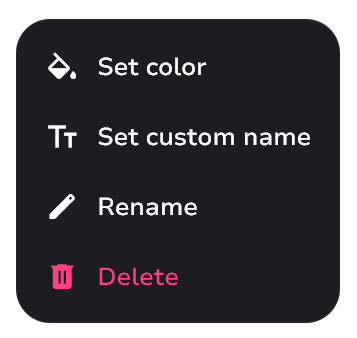
Everything speaks for itself, however it is important to clarify what “Set custom name” is.
Short explanation: allows you to give your actors the same name but different colors.
Long explanation
The point is that each actor is an empty file on your computer without format. Most often the name of the actor is exactly the same as the name of the file. However, if you can't create an actor with the name you want in your file system, or you want to create 2 actors with the same name (which you can't do, because it's unique) - you can create an actor with absolutely any file name and give it its own name, choosing the colors you want for them.
After setting a custom actor name - double click only renames the custom name, not the file name.
Deleting an actor will remove it from all project line blocks without deleting the blocks themselves. Renaming will also rename this actor in all blocks.
Change color
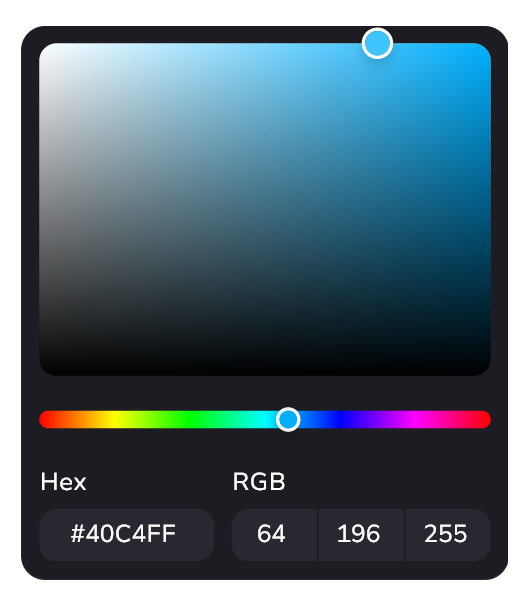
Changes the color of the actor in real time. This can be done:
- By moving the sliders
- By changing RGB values
- By inserting the desired hex
Actors with pictures
Actors do not have to be text only. They can also have images and be displayed in dialog boxes.
Example
- Actor as text
- Actor as image
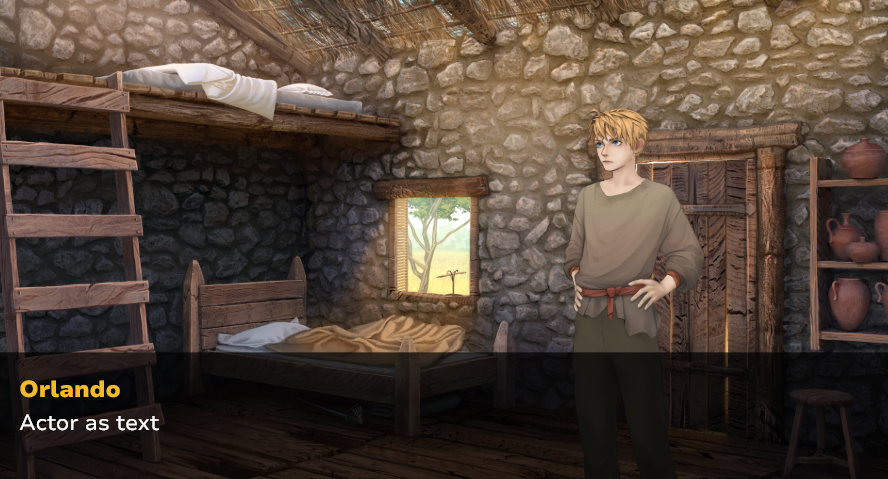
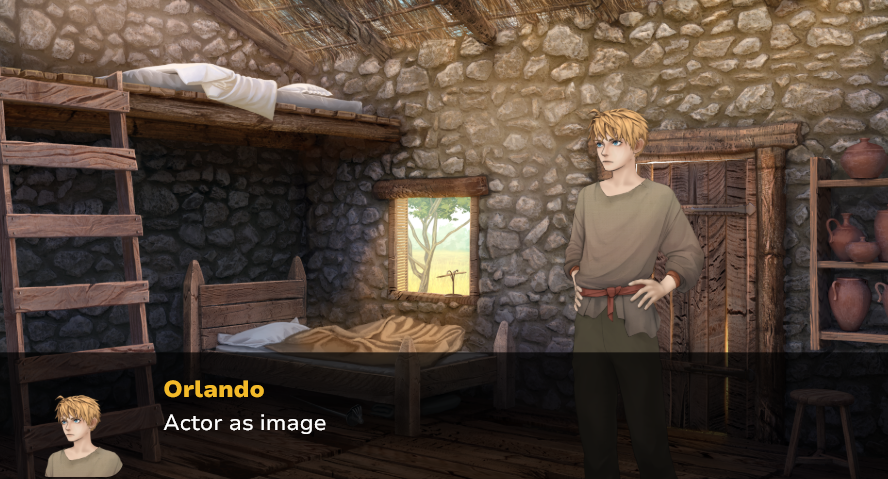
To do this - do not create an empty actor, but add the desired .png image to the actors folder.
You can open Explorer and simply drag and drop the desired file into the actors tab along with the others. Drag and drop a file onto an existing actor - replaces that actor with a new file.