Condition
Now let's make your variables work for you.
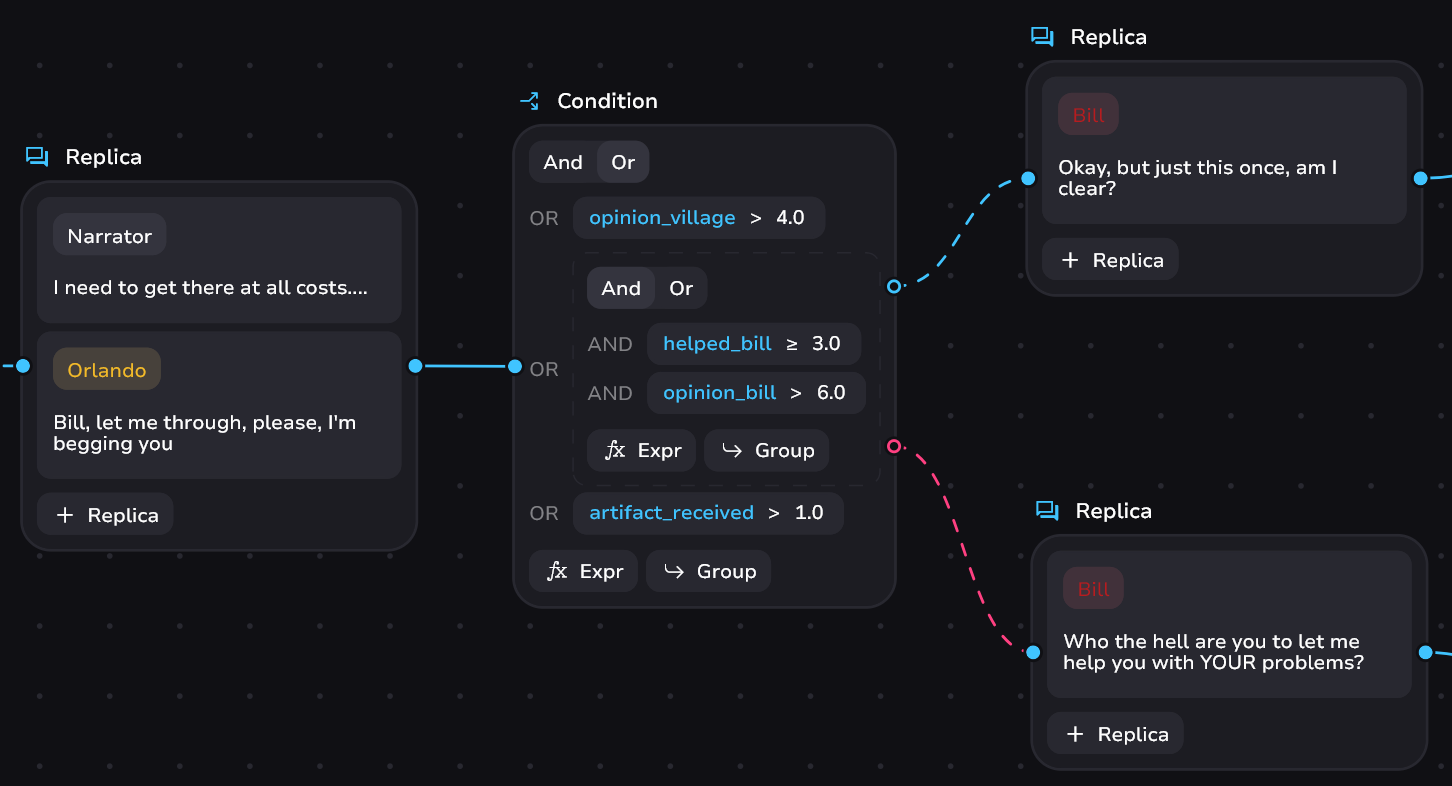
Example
warning
This block is strongly related to variables. Separately, their existence makes no sense.
Condition Controls
Conditions work through combining the logical expressions - AND and OR. You can toggle their modes at the top of the block.
Basic control:
- Create or select a variable to expression
- Press Enter or Tab to switch horizontally in the expression subblock - to operator or value
- Add a new expression - press “Expr” to create a new expression subblock
- Add a new group of expressions - press “↳ Group” to create a new group subblock
info
A block without group subblocks is also a group. Each group can have up to 5 subblocks. The maximum depth of the entire logical block expression is 3. We allow this, but do not recommend it. Not unless you are a PhD in discrete mathematics 👨🏫
Operators
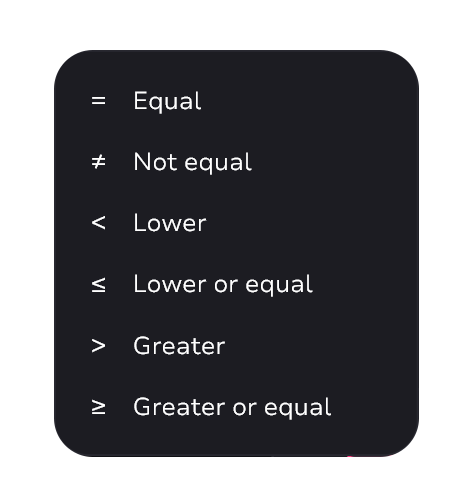
When you enter an operator, the modal window will prompt you to select the desired operator. To add:
- Select from the list
- Enter the characters yourself and press Enter
Input Cheat Sheet
Type:
!=➜≠>=➜≥<=➜≤