Modify
You're working with a character, and you want to, for example, change his emotion. The easy way is to replace him. You'd also like to do this with animations. There is a modify block for this purpose!
Example
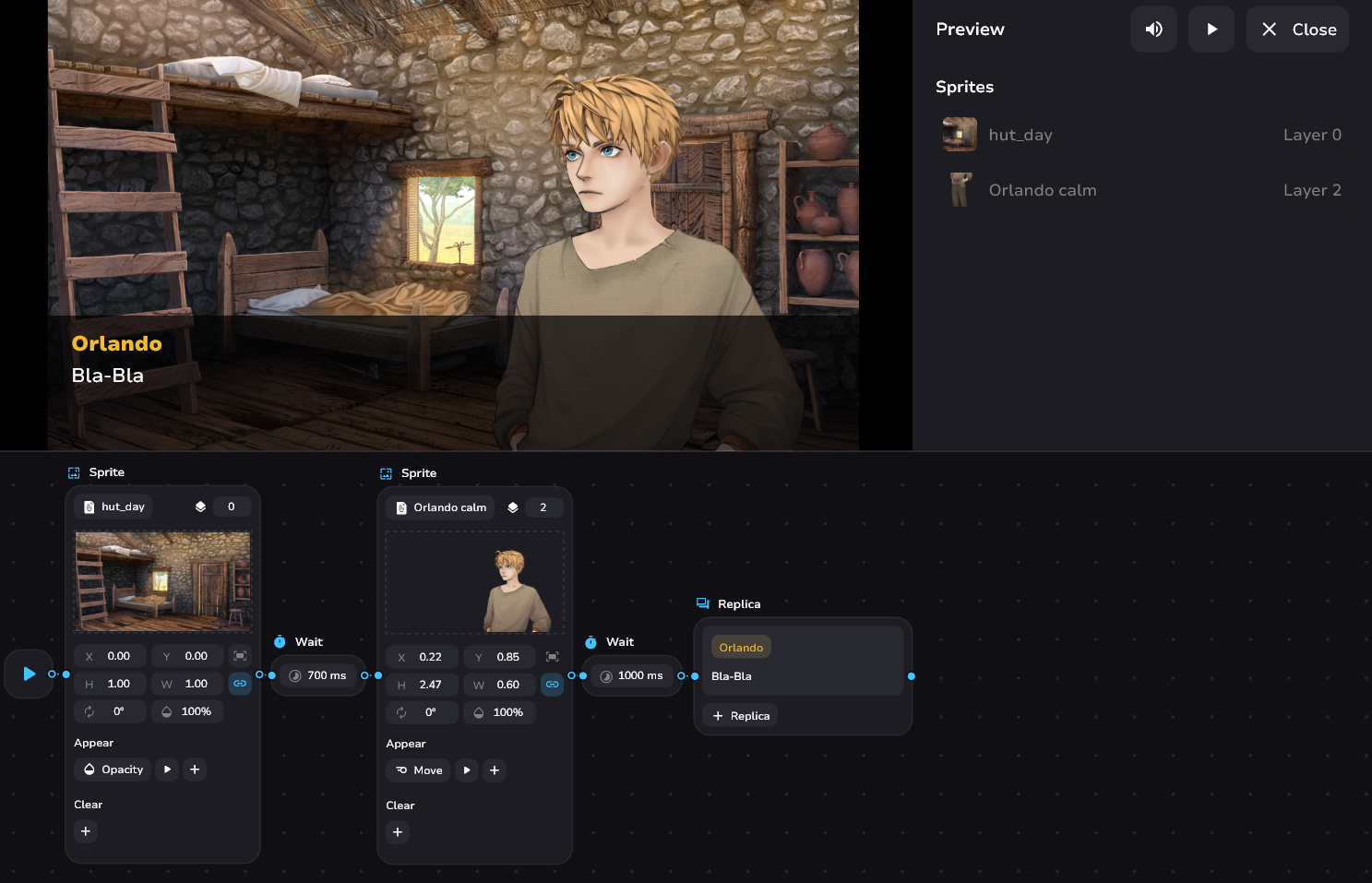
- Without modify
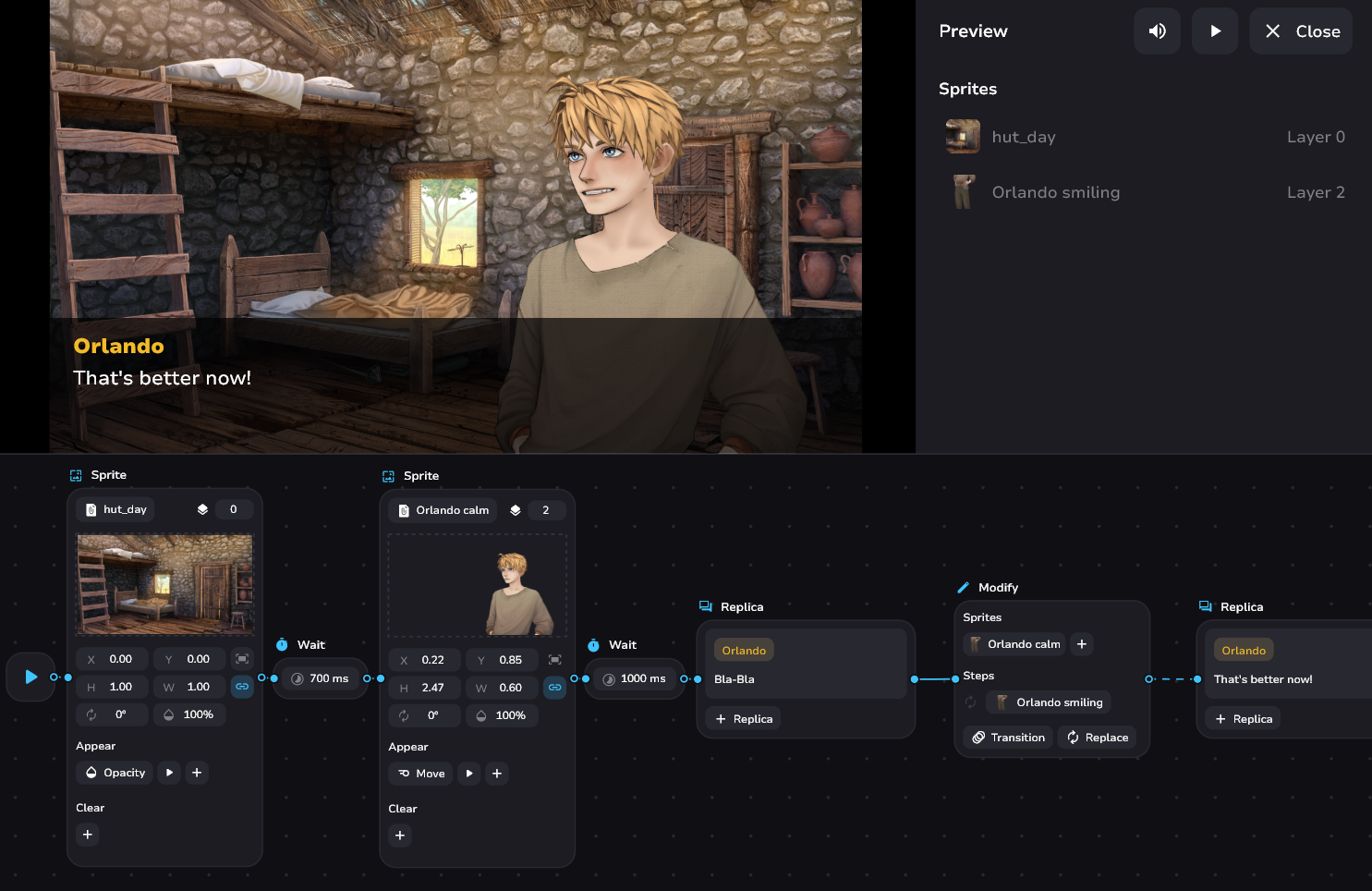
- With modify
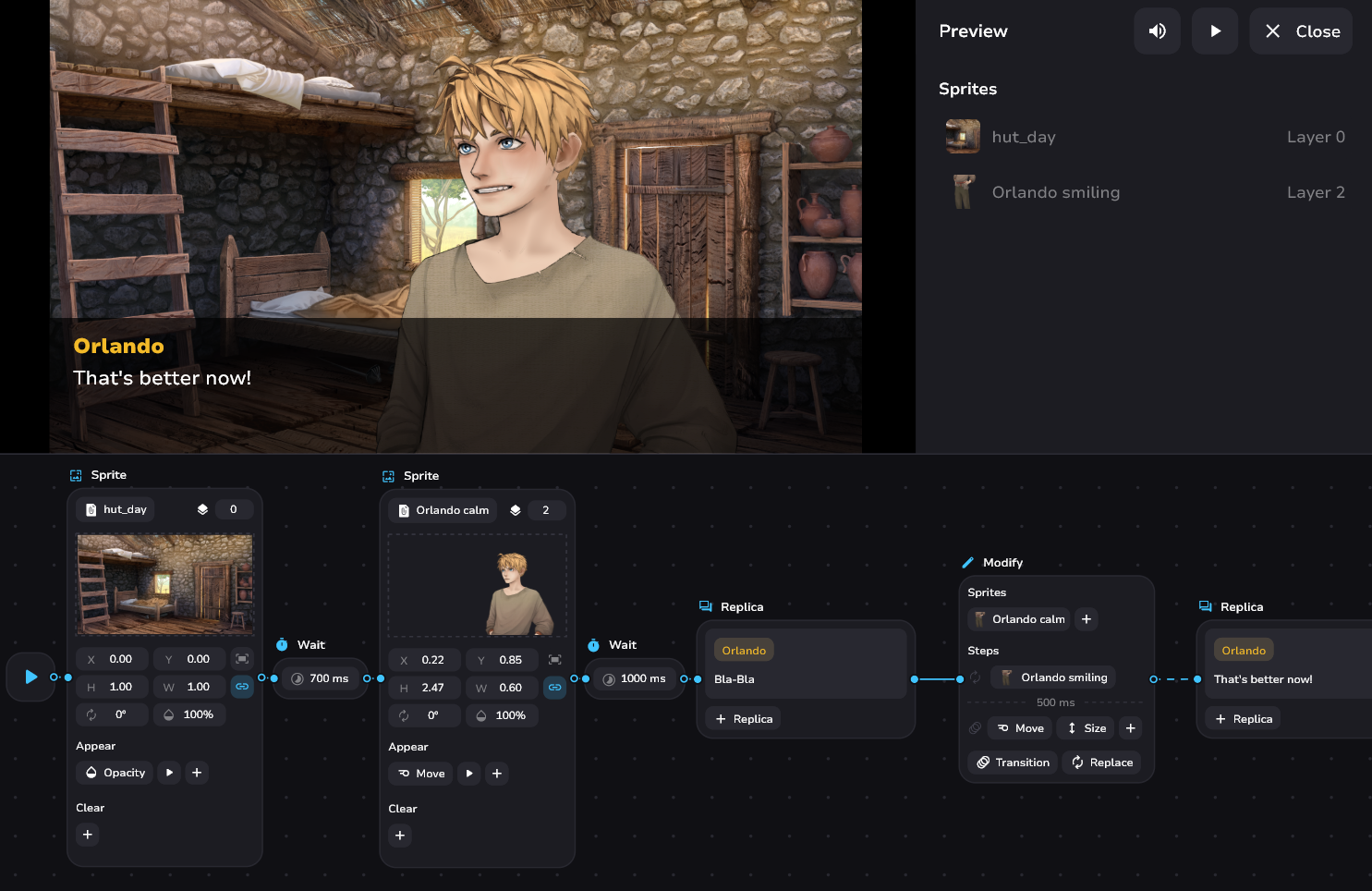
- With complex modify
Modify's Controls
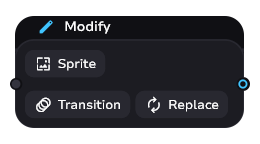
The block consists of the following elements:
- Selecting the sprites to be modified. After selecting one, you can add more sprites via “+”
- Transition is to add a step with animations. A “+” will also appear and you can combine them within a single step
- Replace allows you to replace selected sprites with the one you specify and creates a separate step to do so
The replaced sprite retains its layer.
You can change multiple sprites at the same time, but all replacements will be applied to all those sprites at once. Also, animations are not relative, but are endpoints for ALL the specified sprites!
Clear block will only work on what is currently on the screen. So it should be applied to the last state, i.e. after modification.
Example
- This isn't gonna work
- But this will
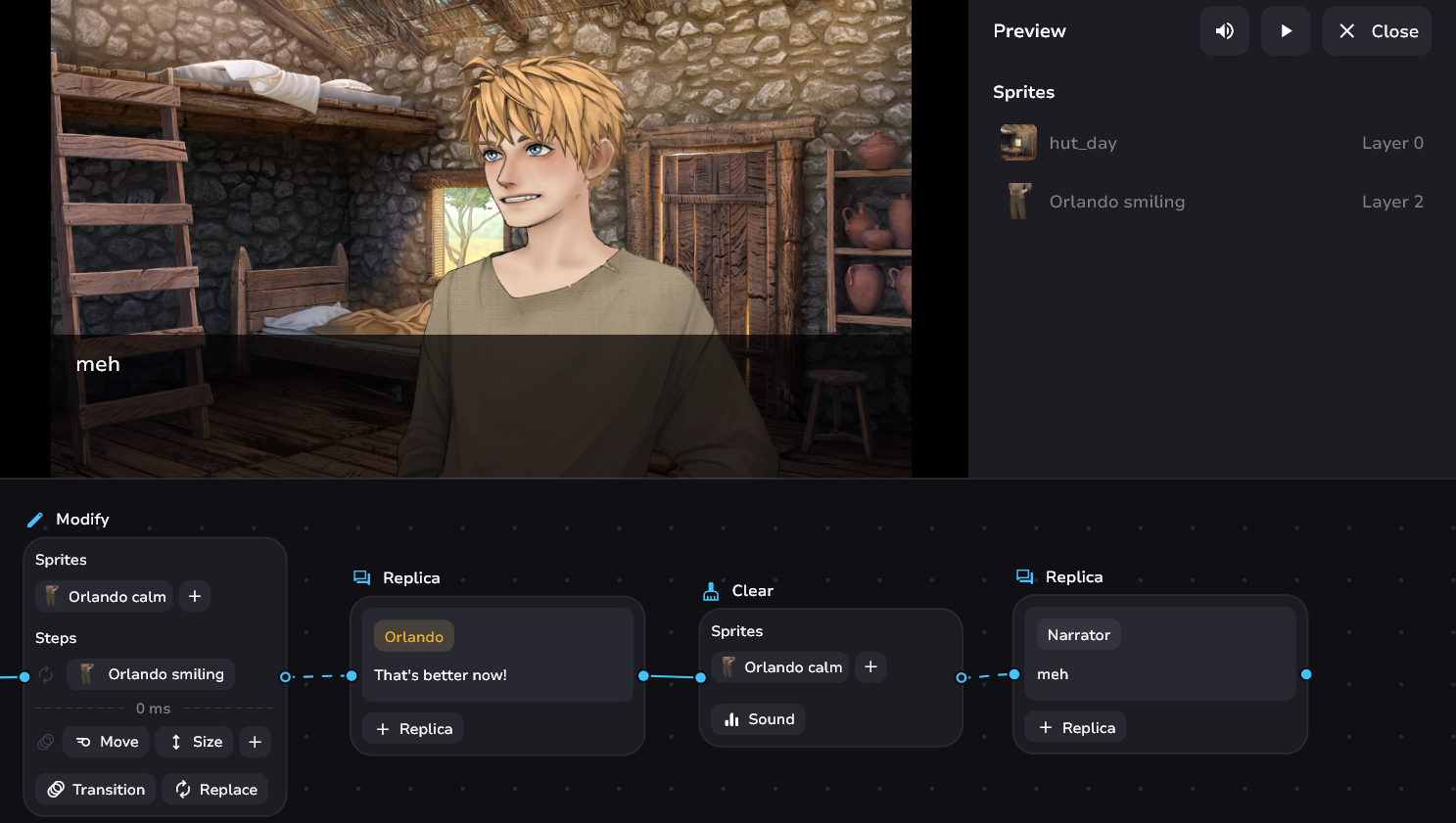
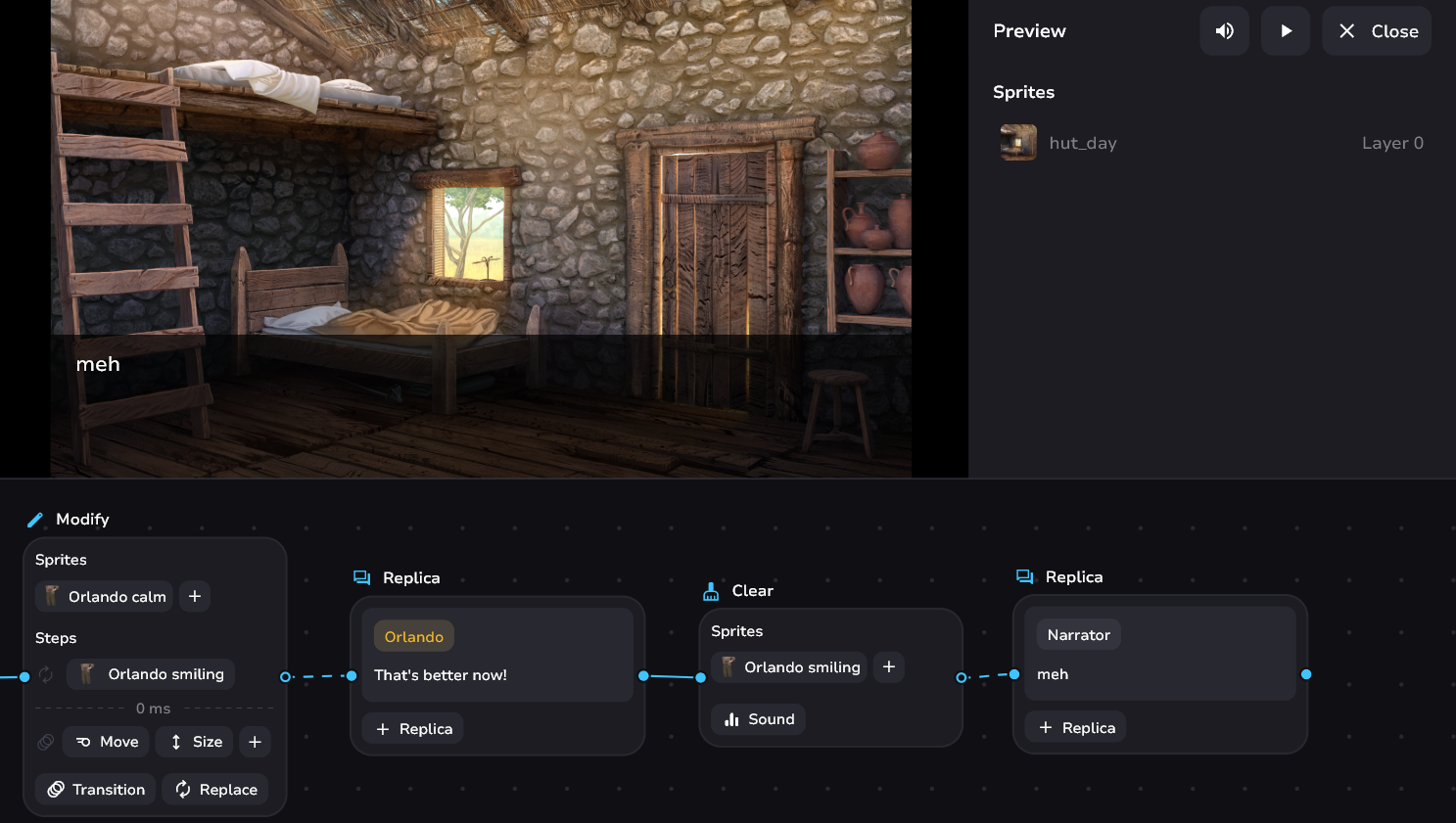
Modify's Steps
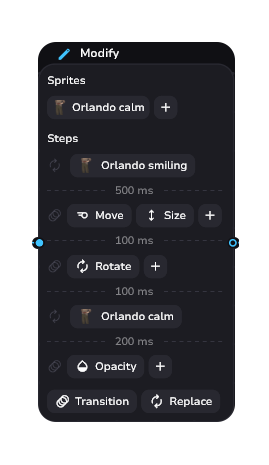
The block works on step animations. You just need to know a few nuances about it:
- The animation won't move to a new step until the previous one is finished. If using Transition - focus on the longest element of your animation
- You can put delays in milliseconds between steps. The default is 0 ms.
- The Modify block is running INDEPENDENTLY from the others. This means that the tale can go on, character phrases can go on, but the animation will be executed.
The last point exists for your freedom to experiment. Try it yourself!
Count the entire length of your animation through modify and put a wait block of that length if you want to wait for the animation to fully execute.
Deleting a step
Items must be selected before they can be deleted. You can do this in two ways:
- Click on the Transition or Replace icon to the left of your animations - this will select all elements in the row.
- Click on the animation itself or the sprite you are replacing.
Then press the Delete or Backspace key.
Rearrange steps
It is currently not possible to rearrange steps. This will be fixed in future releases. Keep an eye out for updates!
Animations
Work exactly the same as in sprite block, and modify cannot exist without a sprite. The only difference is that animations cannot be previewed directly from the block
If you want to know the values the sprite can move to or what it will look like - select the sprite block you want to transform. Then press Ctrl+D, and in the new one change the values to whatever you want. Then use them as a target for your animations.