Sprite
The sprite block is responsible for how your entire tale looks.
Example
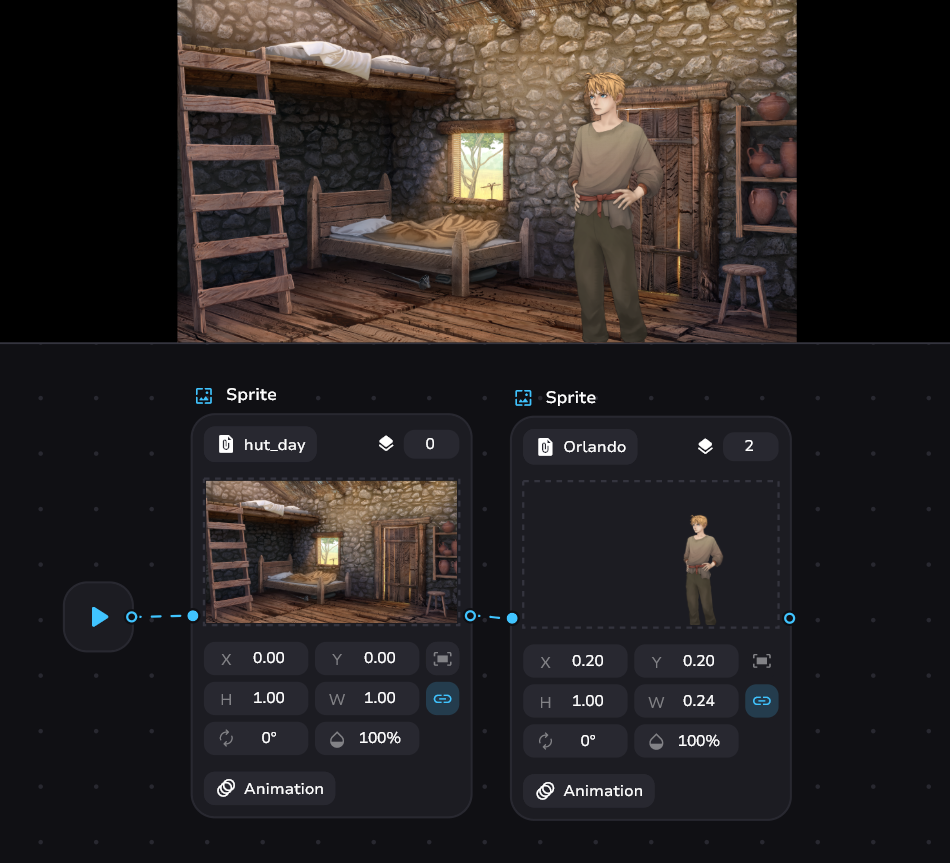
Adding a background or character
All images are sprites, including backgrounds and characters. First, the sprites must be created. Then there are three methods.
The sprite block is not yet on the canvas:
- Drag and drop a sprite from the left tab to an empty space on the canvas
The sprite block is already on the canvas:
- Drag an sprite from the left tab to the desired sprite block
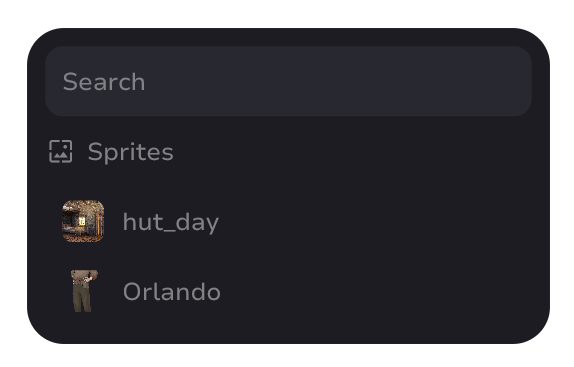
- Click on the current sprite (default is “No sprite”) and select the one you want in the modal window
Sprite control
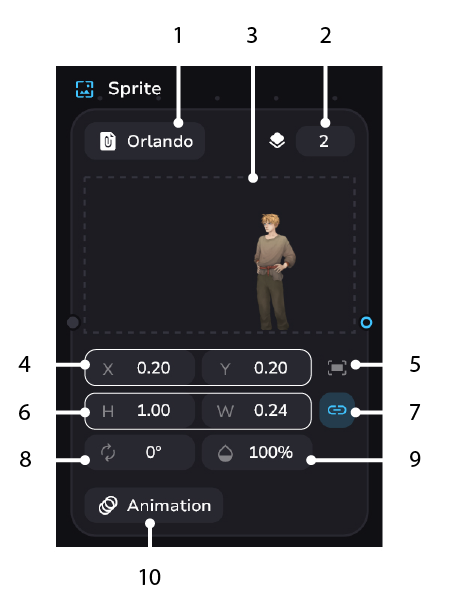
- Select sprites
- Define layer on viewer
- Separate preview of the sprite's position on the screen.
- Moving the sprite horizontally (X) and vertically (Y) from the center
- Reset moves and centering
- Stretching at height (H) and in width (W)
- Lock Aspect Ratio
- Rotation Angle
- Opacity
- Choosing animations
All movement, resizing, rotation and transparency can be changed with gestures. Hold and swipe left or right.
Animations
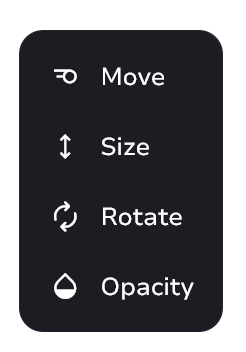
Clicking on the “Animations” button will open up a selection of them. At the moment there are only 4 kinds of them:
- Moving
- Resizing
- Rotation
- Changing opacity
After selecting an animation, the block will expand. There are 2 types of transitions:
- Appearance
- Clearing
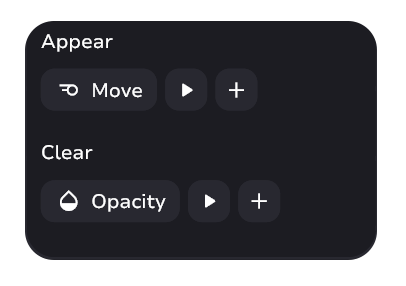
Animations specified in the appearance will be played when the player reaches this sprite block.
Clearing means that if the player has reached the clear block - when the sprite is removed these animations will be played.
Animations control:
- Customize an animation by clicking on it and opening its modal window. Each animation has its own modal window, and these are explained below
- The ▶ button plays animations in the window, including combined animations
- + to add animations and combine them
Modal window for customizing animations
- Move
- Size
- Rotate
- Opacity
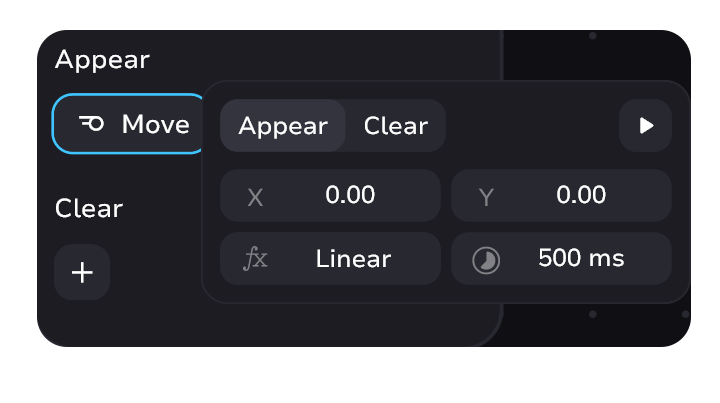
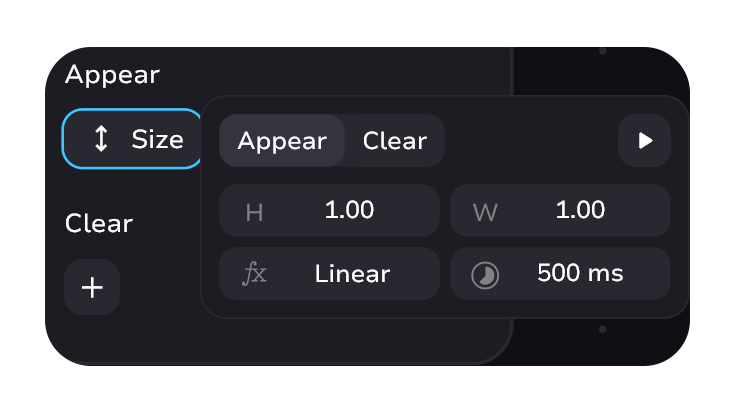
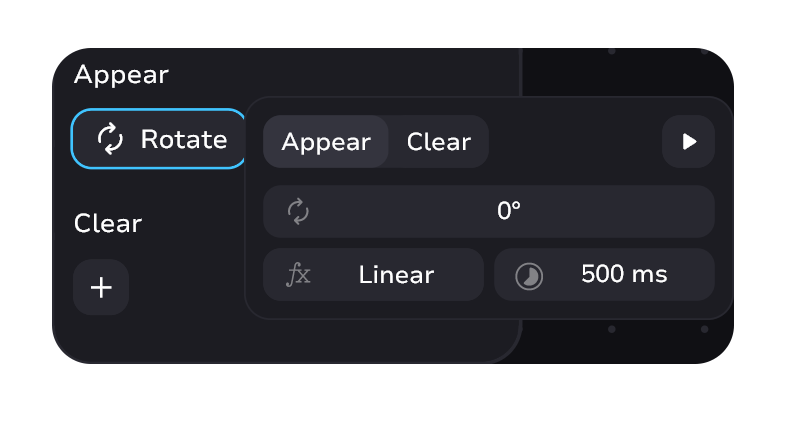
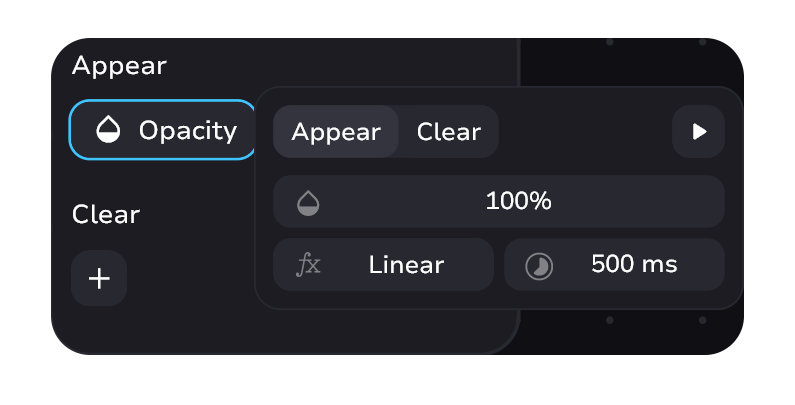
These windows differ only in the element they are responsible for animating. Otherwise, they share common parts:
- Transition of the animation between appear and clear
- The ▶ button play only the selected animation
- Time of animation execution in milliseconds
- Selects the math function by which the animation is executed
Functions list
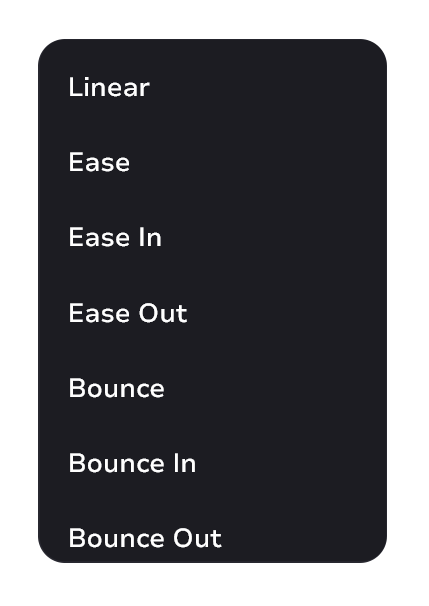
Try experimenting on your own and see how different functions affect the animation.
Animations have a beginning point and an end point. The parameters in the animation modal windows are the beginning point. The parameters at the top of the sprite block are the end point.
Combining animations
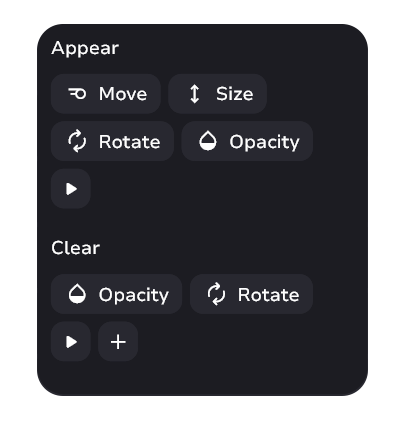
You can combine several types of animations at once. You can combine up to 4 available ones in total.
Read the article about modify block.